Implement Label Printing in ERPNext with PrintNode and a Raspberry Pi
Posted on 2020/05/23 by Dirk van der Laarse
This guide is specifically for ERPNext (the Free and Open Source Cloud ERP Software), but Printnode is robust and awesome, and will work for any web app.
Install PrintNode on your Raspberry Pi
Head over to this guide to set up PrintNode
Install CUPS on your Raspberry Pi
Now we can connect our Zebra GK420D Thermal Label printer to our Raspberry Pi.
This howtogeek guide is handy to set up CUPS
Next, we need to install cups-bsd like so:
sudo apt-get install cups-bsd
CUPS Web config GUI is now available at at http://localhost:631 (access from RPie)
Start PrintNode on boot
To let the PrintNode application autostart on boot, I had to copy the contents from
/etc/xdg/lxsession/LXDE-pi/autostart
to
/home/pi/.config/lxsession/LXDE-pi/autostart
and then add the command to start the PrintNode application:
@lxpanel --profile LXDE-pi
@pcmanfm --desktop --profile LXDE-pi
@xscreensaver -no-splash
point-rpi
@/home/pi/PrintNode-4.19.3-debian_stretch-armv7l/PrintNode
Install PrintNode plugin to ERPNext
TIP
This will only work if you are self-hosting ERPNext
Install the printnode_integration app to your ERPNext instance:
Install the requirements:
cd frappe-bench
./env/bin/pip install -e git+https://github.com/PrintNode/PrintNode-Python.git#egg=printnodeapi
Then install the app from within the frappe-bench directory:
bench get-app "https://github.com/dvdl16/printnode-integration"
bench install-app printnode_integration
ERPNext Configuration
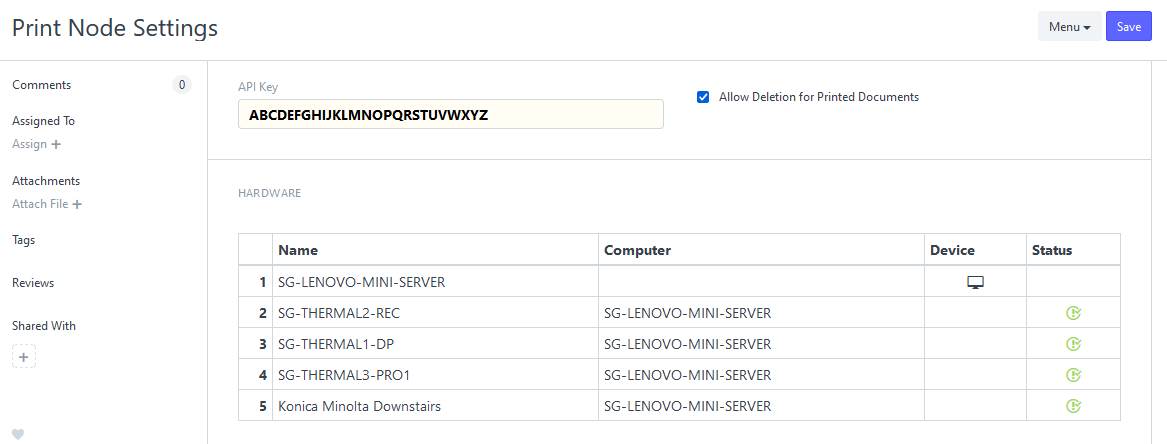
Grab your API key from your PrintNode account page, pop it in the field on the Print Node Settings page, and you are good to go!
Now you can set up user-facing buttons for printing from any document, or even trigger automatic printing after any kind of event. The app uses ERPNext Print Formats, so that means it supports Jinja templating - awesome!